
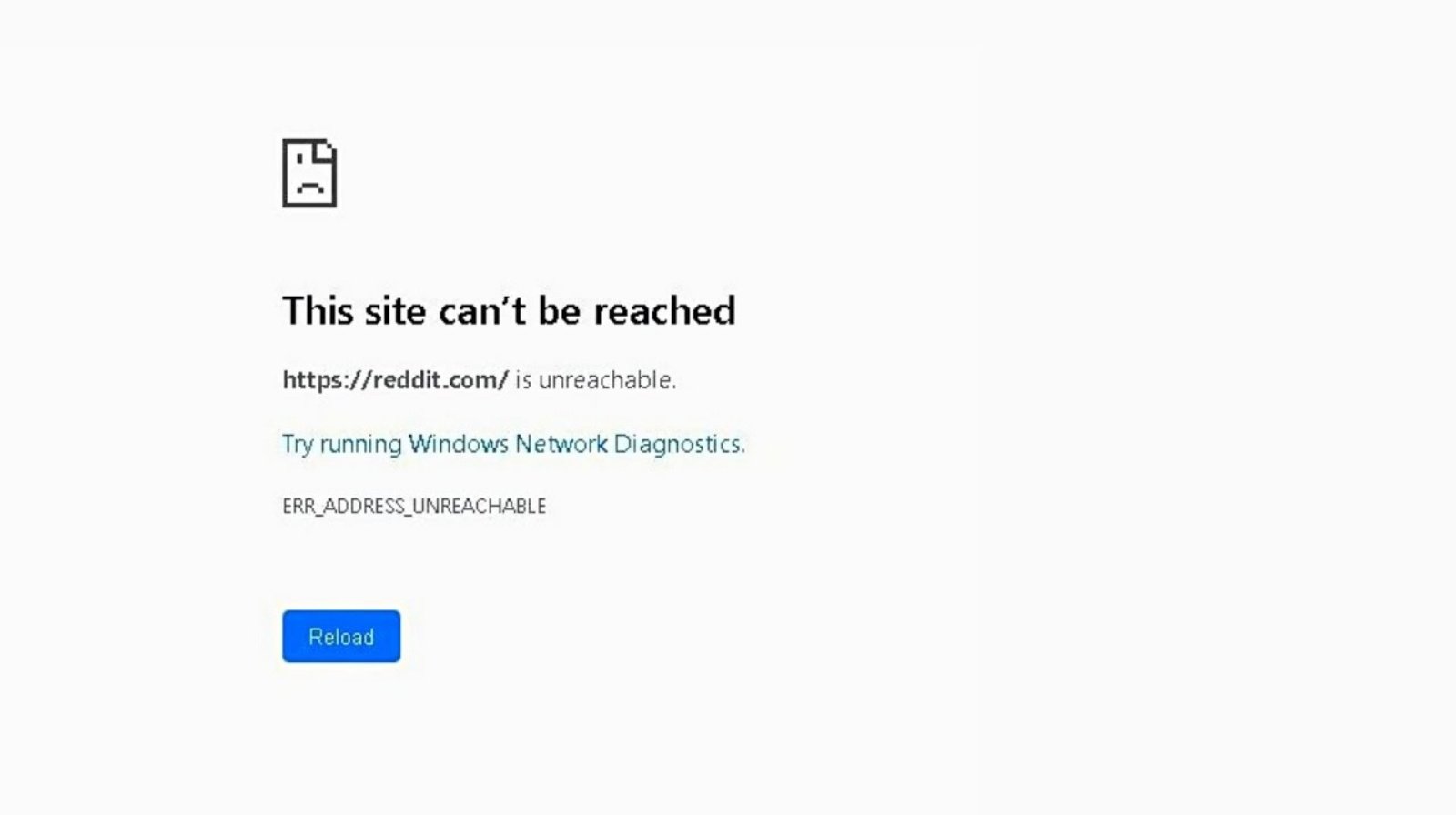
The ERR_ADDRESS_UNREACHABLE error is a common network issue that users encounter while browsing websites in Google Chrome. When this error appears, Chrome cannot establish a connection to the website because the requested address cannot be reached. As a result, web pages fail to load, which can interrupt work, online shopping, streaming, or general browsing activities.
Fortunately, the ERR_ADDRESS_UNREACHABLE error is usually caused by configuration issues, browser problems, DNS conflicts, or network connectivity failures rather than a permanent website outage. Understanding the root cause is the key to resolving it quickly. In this guide, you’ll learn what this error means, the most common reasons it occurs, and several proven troubleshooting methods to restore normal internet access. Whether you’re using Windows, Chrome, or a home network, these solutions can help you fix the issue efficiently.
What Is ERR_ADDRESS_UNREACHABLE?
The ERR_ADDRESS_UNREACHABLE error is a Chrome browser message indicating that the browser cannot reach the IP address associated with a website. Instead of loading the page, Chrome displays an error screen informing users that the destination address is inaccessible.
This problem typically occurs when communication between your device and the target web server fails. The issue may originate from local network settings, DNS resolution problems, browser cache corruption, proxy configurations, or router-related connectivity issues. In some cases, the website itself may be experiencing technical difficulties.
Unlike DNS-related errors that occur when a domain name cannot be translated into an IP address, ERR_ADDRESS_UNREACHABLE often appears after an address has already been identified but remains inaccessible due to network routing or configuration issues.
ERR_ADDRESS_UNREACHABLE Error Common Causes
Several factors can trigger the ERR_ADDRESS_UNREACHABLE error in Chrome. Identifying the underlying cause helps determine the most effective solution.
One of the most common causes is a malfunctioning router or unstable internet connection. When the router fails to properly route traffic, websites become unreachable even though the internet connection appears active. Temporary network glitches can also interrupt communication between your device and the destination server.
Another frequent cause involves corrupted browser cache files, outdated DNS records, misconfigured proxy settings, or problematic Chrome extensions. Additionally, firewall restrictions, VPN conflicts, hosting server issues, and incorrect DNS configurations can prevent Chrome from accessing specific websites. Understanding these possibilities allows users to troubleshoot the issue systematically instead of relying on trial and error.
How to Resolve the “ERR_ADDRESS_UNREACHABLE” Error?
Resolving the ERR_ADDRESS_UNREACHABLE error requires a step-by-step approach. Since the issue can stem from different sources, it’s important to begin with simple fixes before moving on to more advanced troubleshooting methods.
Start by checking whether the problem affects a single website or multiple websites. If only one site is inaccessible, the issue may be related to the website itself. However, if several websites display the same error, the problem likely originates from your browser, network configuration, or internet connection.
The following troubleshooting methods are commonly recommended by networking professionals and browser support teams. Apply each solution in order until the problem is resolved.
1. Restart the Router:
Restarting your router is one of the simplest and most effective ways to fix the ERR_ADDRESS_UNREACHABLE error. Routers continuously manage network traffic, and temporary software glitches can interfere with data transmission.
Turn off the router and unplug it from the power source for approximately 30 seconds. Then reconnect the power and allow the device to restart completely. Once the internet connection is restored, reopen Chrome and attempt to access the website again.
This process clears temporary network errors, refreshes routing tables, and establishes a new connection with your Internet Service Provider (ISP). In many cases, a simple router reboot resolves connectivity-related browsing issues immediately.
2. Try Utilizing a Different Browser:
Testing the website in another browser helps determine whether Chrome is responsible for the issue. Browsers such as Microsoft Edge, Mozilla Firefox, or Safari use different configurations and rendering engines.
Open the same website using an alternative browser. If the website loads successfully, the problem is likely related to Chrome settings, browser extensions, cached files, or user profile corruption.
This diagnostic step helps narrow down the source of the error. If multiple browsers experience the same issue, the problem probably exists at the network or system level rather than within Chrome itself.
3. Implement the Windows Store Apps, Troubleshooter:
Windows includes built-in troubleshooting tools designed to identify and repair network-related problems automatically. Although originally intended for Windows applications, the troubleshooter can sometimes detect configuration issues affecting internet connectivity.
Open Windows Settings, navigate to System > Troubleshoot > Other Troubleshooters, and run the appropriate network or internet troubleshooter. Allow Windows to scan for connection issues and apply recommended fixes.
The troubleshooting process may reset network adapters, repair corrupted settings, or identify configuration conflicts that contribute to the ERR_ADDRESS_UNREACHABLE error. After completion, restart your computer and test Chrome again.
4. Clear Your Chrome Browser Cache:
Chrome stores cached files to improve browsing speed. However, outdated or corrupted cache data can interfere with website loading and trigger connectivity-related errors.
To clear the cache, open Chrome Settings, select Privacy and Security, and click Clear Browsing Data. Choose cached images and files, then proceed with the cleanup process. For best results, select a broad time range.
After clearing the cache, restart Chrome and revisit the affected website. This action forces Chrome to download fresh website resources instead of relying on potentially corrupted local data.
5. Disable Chrome Extensions:
Chrome extensions enhance browser functionality, but some extensions can interfere with network requests or website connections. Security tools, VPN extensions, ad blockers, and privacy utilities are common sources of conflicts.
Type chrome://extensions into the address bar and temporarily disable all installed extensions. Restart Chrome and check whether the website becomes accessible.
If the error disappears, re-enable extensions individually until the problematic extension is identified. Removing or updating the conflicting extension often restores normal browsing functionality without affecting other browser features.
6. You Can Clear the DNS Cache and Modify Your DNS Settings:
DNS (Domain Name System) servers translate domain names into IP addresses. When DNS records become outdated or corrupted, browsers may struggle to connect to websites correctly.
On Windows, open Command Prompt as an administrator and run the command:
ipconfig /flushdns
This command clears stored DNS entries and forces Windows to retrieve updated DNS information. Afterward, restart Chrome and test the website.
If the issue persists, consider switching to a public DNS provider such as Google Public DNS or Cloudflare DNS. These services often provide faster and more reliable DNS resolution than default ISP servers, helping eliminate DNS-related causes of the ERR_ADDRESS_UNREACHABLE error.
How to Change DNS Settings on a Windows Device?
Changing DNS settings in Windows is straightforward and can improve browsing reliability. Open Control Panel, select Network and Sharing Center, and click Change Adapter Settings.
Right-click your active network connection and choose Properties. Select Internet Protocol Version 4 (TCP/IPv4) and click Properties. Choose Use the Following DNS Server Addresses.
For Google Public DNS, enter:
- Preferred DNS Server: 8.8.8.8
- Alternate DNS Server: 8.8.4.4
Alternatively, you can use Cloudflare DNS:
- Preferred DNS Server: 1.1.1.1
- Alternate DNS Server: 1.0.0.1
Save the changes and restart your browser. Updated DNS settings often resolve persistent website accessibility problems.
7. Disable the Proxy Server:
Proxy servers act as intermediaries between your device and the internet. While useful in certain environments, incorrect proxy settings can prevent websites from loading properly.
To check proxy settings in Windows, open Settings > Network & Internet > Proxy. Review the current configuration and disable any proxy servers that are not required.
After disabling the proxy, restart Chrome and test the affected website again. If the ERR_ADDRESS_UNREACHABLE error disappears, the proxy configuration was likely blocking or misrouting internet traffic.
8. Connect With Your Hosting Provider:
If you own the website experiencing the ERR_ADDRESS_UNREACHABLE error, the problem may originate from the hosting environment rather than your local device.
Contact your hosting provider and ask whether there are server outages, DNS propagation issues, firewall restrictions, routing problems, or IP configuration errors affecting accessibility. Hosting support teams can examine server logs and identify backend issues.
Website owners should also verify domain records, SSL certificate status, and server uptime. Addressing hosting-related problems can restore access for both administrators and visitors.
FAQs
Why does Chrome show ERR_ADDRESS_UNREACHABLE only for one website?
This usually indicates a website-specific issue, such as server downtime, incorrect DNS records, firewall restrictions, or hosting problems rather than a problem with your browser.
Can a VPN cause the ERR_ADDRESS_UNREACHABLE error?
Yes. Some VPN services alter network routes and DNS settings. If a VPN server is experiencing connectivity issues, Chrome may display the error when trying to access certain websites.
Does clearing Chrome cache fix ERR_ADDRESS_UNREACHABLE?
It can. Corrupted cached files occasionally interfere with website loading. Clearing the cache removes outdated data and allows Chrome to download fresh website resources.
Which DNS servers are recommended for fixing ERR_ADDRESS_UNREACHABLE?
Many users switch to Google Public DNS (8.8.8.8 and 8.8.4.4) or Cloudflare DNS (1.1.1.1 and 1.0.0.1) for improved reliability and faster DNS resolution.
Is ERR_ADDRESS_UNREACHABLE a server-side or client-side problem?
It can be either. The error may result from browser settings, DNS issues, network configuration problems, or server-side outages affecting website accessibility.
Conclusion
The ERR_ADDRESS_UNREACHABLE error can be frustrating, but it is often straightforward to diagnose and fix. Common causes include router issues, DNS conflicts, corrupted browser cache, problematic Chrome extensions, proxy settings, and hosting-related problems. By following a structured troubleshooting process, users can quickly identify the source of the problem and restore website access.
Start with basic solutions such as restarting your router and testing another browser. Then move on to clearing Chrome cache, flushing DNS records, updating DNS settings, and reviewing proxy configurations. If you manage the website yourself, contacting your hosting provider may reveal server-side issues. Applying these proven methods will help resolve the ERR_ADDRESS_UNREACHABLE error and improve overall browsing reliability.

Rajesh Khanna is a quotes and captions writer who believes words have the power to heal, inspire, and guide. With 5+ years of experience writing Bengali and English quotes, captions, and Islamic content, he helps readers find meaningful words for every moment of life. On Caption Drift, his focus is simple smart captions, powerful quotes, and mindset words that actually mean something.